Conditions and targeting for Age Verification
Choose which pages show the age gate and which products checkout treats as age-restricted, using whole-store, collection, product and tag rules.
Updated
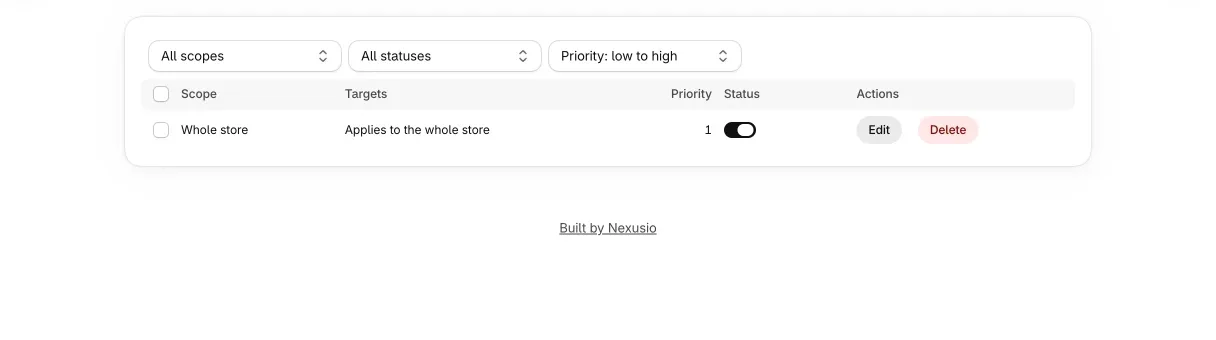
Display rules decide where Age Verification applies. A rule does two jobs with two different mechanisms: it decides which storefront pages show the gate, and it decides which products checkout treats as age-restricted. The two can disagree, and this guide shows where. For the gate’s settings, see Set up the age gate.
This page describes product features. It is not legal advice.
Display targeting
Open Display targeting in the left navigation. The list shows one row per rule with its Scope, Targets, Priority and Status. You can filter by scope and by status, sort by priority, and select several rules to enable, disable or delete them together. “Add rule” opens the rule editor, and every rule has a switch to enable or disable it.
A rule has four parts.
- Scope: Whole store, Collection, Product or Tag.
- Targets: what the scope applies to, as the table below shows.
- Priority: a number, 1 by default. Priority only sets the order of the list. It does not change which rule wins, because the gate applies when any enabled rule matches.
- Enabled: a disabled rule is ignored everywhere.
The editor warns you when a rule repeats one you already have.
The four scopes
| Scope | What you choose | Storefront gate | Checkout check |
|---|---|---|---|
| Whole store | Nothing. | Every page. | Every product in the cart counts as restricted. |
| Collection | One or more collections. | The collection page of a chosen collection, and the product page of any product in one. | Products in the chosen collections. |
| Product | Products to include, and optionally products to exclude. | The product page of an included product that is not excluded. | The included products, minus the excluded ones. |
| Tag | One or more product tags. | The product page of any product that carries one of the tags. | Products that carry one of the tags. |
For collections and products, use the picker. You can also paste Shopify IDs separated by commas, such as gid://shopify/Product/123. Tags are product tags, not customer tags. On the storefront, tag matching ignores upper and lower case and spaces around a tag.
An example that needs no list upkeep: tag your wine products alcohol, then add a Tag rule with the tag alcohol. Products you tag later are picked up when they are created or updated.
Where the gate shows when rules are targeted
With a Whole store rule, the gate shows everywhere. With only targeted rules, it shows on the product and collection pages that match, and not on other pages such as the home page or search.
There are three exceptions, and in each the gate shows because the app cannot tell what you are looking at.
- The buyer is on the cart page.
- The cart already holds any item, restricted or not. This covers themes with a drawer cart, which never load a cart page. Once the cart has something in it, the gate shows on every page.
- The page does not give the app enough information, for example a tag rule on a product that has no tags.
A buyer who passed is not asked again until the remembered pass expires or you raise the minimum age.
What the checkout check looks at
The checkout check is a Shopify Function. It marks no product itself. When you save a rule, the app works out which products the rule covers and writes a restricted marker on each one as a product metafield. At checkout, the Function looks for that marker on each cart line. If no line is restricted, the buyer goes through. If a line is restricted, the buyer needs one of these:
- the
age_verifiedcart attribute set to 1, which the gate writes on a pass; - a logged-in customer with the tag
age-verified-followed by a number at or above your current minimum age. The plainage-verifiedtag counts only on stores that were set up before the age tags existed, and only while the minimum age is no higher than the lowest age the store has used.
Without either, checkout shows “You must be 18 or older to purchase age-restricted items. Please verify your age to continue.” (with your minimum age) and the buyer cannot continue.
A Whole store rule skips the markers. The Function treats every product as restricted, so new products are covered at once. The other scopes depend on the markers, which are kept up to date three ways: saving a rule or the settings queues a refresh, a product being created or updated queues one, and a sweep every 20 minutes repairs anything that failed. A product you tag is covered once Shopify reports the update, not at the same second. Allow up to 20 minutes after a change the app is not told about directly, such as adding a product to a collection.
No rules, or every rule disabled
The empty-state text on Display targeting says “No targeting rules yet. The gate applies to the whole store by default.” That describes the storefront. With no enabled rule, the gate shows on every page, and no product is marked as restricted, so the checkout check blocks nothing.
The same holds if you disable your last rule while the gate stays on. If you want checkout to enforce, add at least one enabled rule, and Whole store is the simplest. If you want the gate off entirely, switch it off in Settings or on Home. That also turns off the checkout check.
Rules and the minimum age
Rules choose products. They do not set the age. One minimum age covers every rule.
Customer tags record the age the gate showed, as in age-verified-21, and checkout accepts a tag at or above your current minimum. When you raise the age, customers tagged at the old age stop passing at checkout until they pass the new gate. The tags run from age-verified-1 to age-verified-99, which is the range the checkout check looks for. At a minimum age above 99, customer tags do not count at checkout, and buyers rely on the cart attribute alone.