Set up the age gate
Choose the minimum age, verification method, wording and look of your Age Verification gate, and see what happens when a buyer passes or fails.
Updated
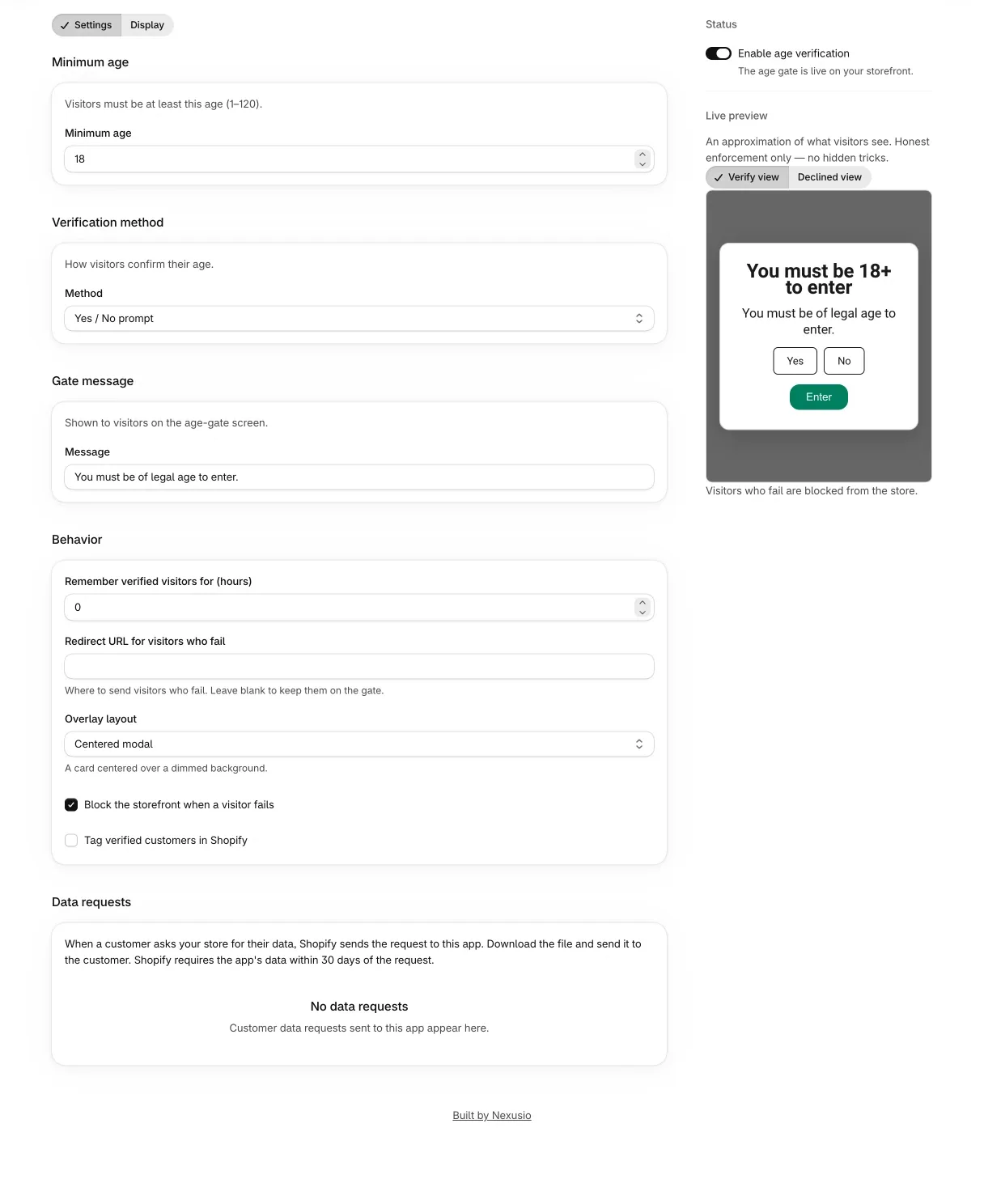
This guide goes through Settings, field by field, and then through what a buyer sees and what the app records. If you have not installed the app or switched on the theme app embed yet, start with Get started with Age Verification.
This page describes product features. It is not legal advice.
The Settings tab
Settings has two tabs, Settings and Display. A Status card on the right holds the switch “Enable age verification”. When it is on, the card says “The age gate is live on your storefront.” When it is off, it says “The age gate is off. Visitors enter without a check.”
| Field | What it does | Default |
|---|---|---|
| Minimum age | The age a buyer must declare. Whole numbers from 1 to 120. | 18 |
| Method | How the buyer confirms their age: Yes / No prompt, Enter birth year, Enter date of birth or Confirmation checkbox. | Enter date of birth |
| Message | Required. See the note under “Wording and look”. | “You must be of legal age to enter.” |
| Remember verified visitors for (hours) | How long a pass is remembered in that browser. Up to 8,760 hours, which is one year. | 720 |
| Redirect URL for visitors who fail | Where to send a buyer who declines. Leave it blank to keep them on the gate. | blank |
| Overlay layout | Centered modal, Full screen or Bottom sheet. | Centered modal |
| Block the storefront when a visitor fails | Leave it on. With it off, the app shows an “Enforcement is off” warning that says the gate becomes informational only. | On |
| Tag verified customers in Shopify | Adds tags to a logged-in customer who passes. | On |
| Additional tag (optional) | Your own tag, added next to the app’s tags. | blank |
The redirect URL must be a path on your store that starts with /, or a link that starts with https:// or http://. Anything else is refused when you save. The additional tag cannot contain a comma, and it cannot have the shape of the app’s threshold tags, which are age-verified- followed by a number.
A save bar appears when you change something. After “Settings saved”, the app sends the new configuration to Shopify in the background, so the storefront and the checkout check pick it up after a short delay and not at the moment you press Save. A sweep that runs every 20 minutes catches anything that did not go through the first time.
How each method works
Every method ends the same way: the buyer either passes or declines, and the browser decides.
| Method | What the buyer does | What counts as a pass |
|---|---|---|
| Yes / No prompt | Clicks “Yes, I am of legal age” or “No, I am not”. | A click on Yes. The age is not asked. |
| Enter birth year | Types a year. | The current year minus the typed year is at least the minimum age. The month and day are not considered, so a buyer who turns 18 later this year counts as 18 today. |
| Enter date of birth | Picks a date. | The exact age on today’s date is at least the minimum age. |
| Confirmation checkbox | Ticks “I confirm I am of legal age” and presses the Enter button. | The box is ticked. If it is not ticked, the Enter button does nothing. |
With the birth year and date of birth methods, a buyer who enters an age below the minimum sees an error that names the minimum age and can type again. That is not recorded as a failed check. A fail is recorded when the buyer clicks “No, I am not” or “Exit”, or presses Escape.
The Yes / No and checkbox methods do not compare anything with the minimum age. The minimum age still appears in the “Access denied” message, in the customer tags and in the audit log.
What happens when a buyer fails
If you set a redirect URL, the buyer is sent there. If not, the gate switches to an “Access denied” panel with the message “You must be 18 or older to enter this store.” (with your minimum age) and a “Go back” button that returns to the question. The buyer can then answer again. The gate cannot stop a buyer who chooses to declare an age they do not have, which is why the app describes every pass as a declaration.
What happens when a buyer passes
- The gate closes and the browser remembers the pass for the hours you set. The memory is kept on that browser only, together with the age the gate showed.
- The cart gets three attributes:
age_verifiedset to 1, the time of the pass, and the method used. Shopify carries cart attributes onto the order as note attributes. - The app records a gate event in the audit log.
- If the buyer is logged in and tagging is on, the app adds the plain tag
age-verifiedand a threshold tag such asage-verified-18to the customer, plus your additional tag if you set one. A tag lets the declaration outlive the browser session: at checkout, a customer with an accepted tag counts as passed on any device.
If you raise the minimum age later, earlier passes at a lower age no longer count. The remembered pass in the browser records its age, so a buyer who passed at 18 meets the gate again when it asks for 21. A customer tagged age-verified-18 does not pass a 21 gate at checkout either. The cart attribute carries no age, so a cart that passed before the change keeps its pass until the buyer meets the gate again.
The gate does not appear inside the Shopify theme editor, so you can edit your theme without clicking through it.
Wording and look: the Display tab
The Display tab changes what the overlay says and how it looks. It does not change who is blocked.
- Content: Heading, Body message, Disclaimer, Declined heading, Declined message and Logo URL (an HTTPS link to a hosted image).
- Typography: font (theme default, sans-serif, serif, rounded or monospace), heading size, body text size and heading weight.
- Colors: background, text, accent, backdrop, button, button text, muted text and the input background and border. The app warns about low contrast when text and background, or button and button text, fall below a ratio of 4.5:1.
- Shape: corner radius (sharp, rounded or pill), card shadow and border width.
- Imagery: a background image URL, a darkening overlay and logo size.
- Motion: entrance animation (none, fade or slide up) and a blur on the backdrop.
- Presets: one-tap Light, Dark and Branded color themes. They change colors and shape and keep your wording and font.
A live preview shows an approximation of what buyers see. If you leave a content field blank, the storefront uses the built-in English wording: the heading “Age Verification Required”, the body “You must be of legal age to enter this site.” and a short disclaimer. Wording you type is shown exactly as typed, to every language of your store.
The storefront reads its wording from the Display tab. The required Message field on the Settings tab is not sent to the storefront. It appears only in the live preview, as a fallback when the Display tab’s body message is empty. Set your own wording in the Display tab.
Check that it works
- Open your store in a private browser window, so no earlier pass is remembered.
- The gate should appear. If it does not, look at the two rows in the Home banner and at the list further down.
- Pass the gate. Then open the Audit log and look for a new row with the source “Storefront gate”.
If the gate does not appear:
- The Age gate row on Home says “Turned off”. Switch it on.
- The Theme app embed row says “Off” or “Could not be checked”. Open the theme editor from Home and switch the Age Gate embed on, then save the theme.
- Your display rules do not cover the page you are on. Targeted rules show the gate on matching product and collection pages. See the next guide.
- The browser remembers an earlier pass. Use a private window or clear the site’s data.
- Home shows “Checkout age check is off”. Shopify allows 25 active checkout rules on a store, and yours has reached that number, so the age check cannot run at checkout. The storefront gate still works. Turn off a checkout rule you do not need and the app turns the age check on within 20 minutes.
The audit log
The Audit log page opens on the last 30 days. The date range menu offers Today, Last 7 days, Last 30 days, Last 90 days and a Custom range of up to 365 days. Until the first event is recorded, the page shows only a short note that checks appear once a display rule is live.
Once there are events it shows three tiles, each compared with the previous period: Verifications, Pass rate and Failed checks. Below them are a daily chart of passed and failed checks, breakdowns by country, method and source, and a table of events 50 at a time. The table has columns for Time, Source, Method, Result, Threshold, Country and Order, and you can filter it by Result, Source, Country and Order ID.
There are two sources. A “Storefront gate” row means a gate event arrived. An “Order” row means an order was placed from a cart that carried the age_verified attribute. Method and Threshold show your settings at the moment the event came in. Country comes from a request header and can be blank, in which case the country breakdown lists it as Unknown. The raw IP address is not stored.
Export CSV downloads the rows that match your filters, up to 200,000, with the columns occurred_at, source, method, result, threshold_age, country, order_id and customer_id. Events older than 395 days (about 13 months) are deleted.
A row is a record that an event arrived. It is not proof of age.