Get started with Age Verification
Install Tillward Age Verification, open the app in your Shopify admin and set up an age gate for your age-restricted products.
Updated
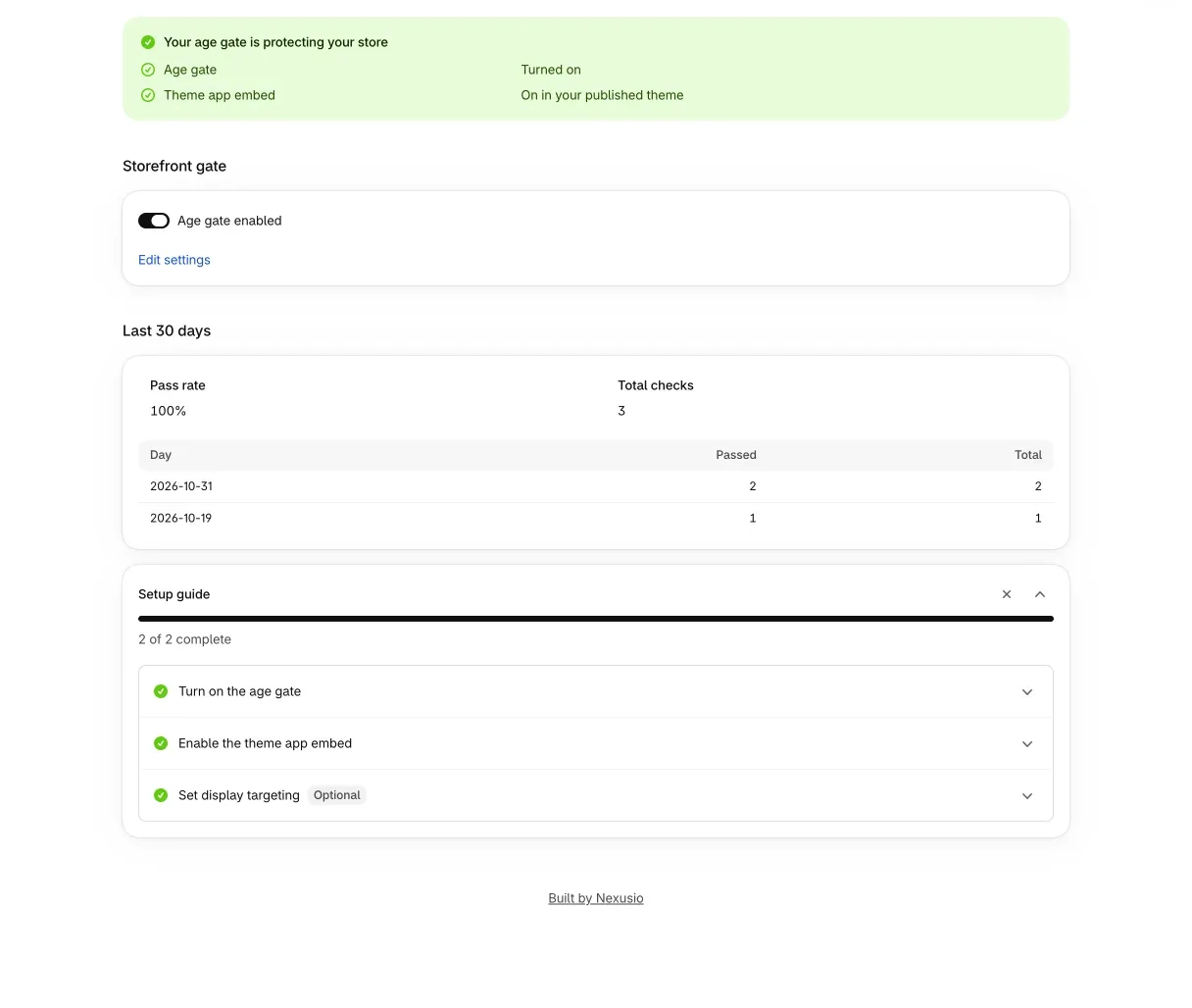
Age Verification puts an age gate on your storefront and checks at checkout that the buyer passed it before restricted products go through. It also keeps a log of gate and order events that you can export. This guide covers what the app does, the install, and the setup steps that make the gate work. The next two guides set up the gate and aim it at the right products.
This page describes product features. It is not legal advice. Which minimum age applies to your products and markets is for you to confirm.
What the app does, and what it does not
The pass is the buyer’s own declaration. Depending on the method you pick, the buyer clicks yes, types a birth year, enters a date of birth or ticks a box. The browser decides whether that answer is enough. The app does not check ID, and it does not call any third-party service to confirm an age.
That shapes what the checkout check can promise. It confirms that the buyer declared their age. It cannot confirm that the buyer is of age. If you sell where the law asks for a checked identity, you need an ID-verification provider alongside this app, because the app does not provide one.
The app works in two places and keeps one record.
- On the storefront. A theme app embed shows an overlay that asks the buyer to confirm their age. A buyer who passes is remembered on that browser for the number of hours you set, 720 (30 days) by default.
- In checkout. A Shopify Function checks the cart. If it holds a product you have marked as age-restricted and the buyer has not passed, checkout is blocked with the message “You must be 18 or older to purchase age-restricted items. Please verify your age to continue.” (with your minimum age in place of 18). A pass counts when the cart carries the attribute
age_verifiedset to 1, which the gate writes on a pass, or when the logged-in customer has an age-verified tag. - In the audit log. Each gate event and each order placed from a passed cart is recorded. You can filter the log and export it as CSV.
Until you add a display rule, no product is marked as restricted, so the checkout check has nothing to block. The gate still shows on every storefront page. The conditions and targeting guide explains the difference.
Install the app
- Open the listing: View on the Shopify App Store.
- Choose to add the app to your store.
- Approve the permissions Shopify lists.
Each permission has a job. The app reads and writes products so it can mark restricted products with a metafield. It writes customers so it can add the age-verified tags. It reads orders so it can log the ones placed from a passed cart; for each order it reads only the order ID, timestamps, the customer ID and the order’s note attributes, never a name, email, phone number or address. It reads and writes validations so it can create the checkout check.
The app opens in your Shopify admin on its Home page. The listing and the admin may still show the earlier Nexo name for a while. It is the same app.
Find your way around
The left navigation has four entries.
- Home has the status banner, the on and off switch, the last 30 days of checks and the setup guide.
- Settings holds the minimum age, the verification method and behavior, plus a Display tab for wording and look.
- Display targeting lists the rules that decide which products the gate and the checkout check cover.
- Audit log shows every recorded check, with filters and a CSV export.
The status banner on Home has two rows: “Age gate” (turned on or off) and “Theme app embed” (on in your published theme, off, or could not be checked). Both have to be on for the gate to appear on your storefront. A new install starts with the gate turned off.
Work through the setup guide
Home opens with a card called “Setup guide”. Two steps are required and one is optional.
- Turn on the age gate. The button switches it on with the defaults: minimum age 18, the date of birth method and a 30-day memory. If you are not sure which age to start with, “Not sure which age?” opens a short wizard. It asks what you sell (Alcohol, Tobacco / Vape or Adult products) and your primary market (United States, European Union or Other), suggests a minimum age, and says plainly that it is a starter and not legal advice. “Use this preset” saves that age and turns the gate on. You can change the age later in Settings.
- Enable the theme app embed. The gate runs as a theme app embed, so it needs one switch in your theme editor. “Open theme editor” opens it in a new tab. Switch the Age Gate embed on and save the theme. Without the embed the gate never shows, even with the app switched on.
- Optional: set display targeting. By default the gate applies to the whole store. Use this step to limit it to collections, products or product tags, and to mark which products checkout should block.
The card shows progress as “N of 2 complete”. You can dismiss it once you are done.
Plans
Age Verification is free. The pricing page has the current plans for all three apps.