Conditions and targeting
Aim an Order Limits rule at the right products, customers, countries and dates, and add conditions on products or on the whole cart.
Updated
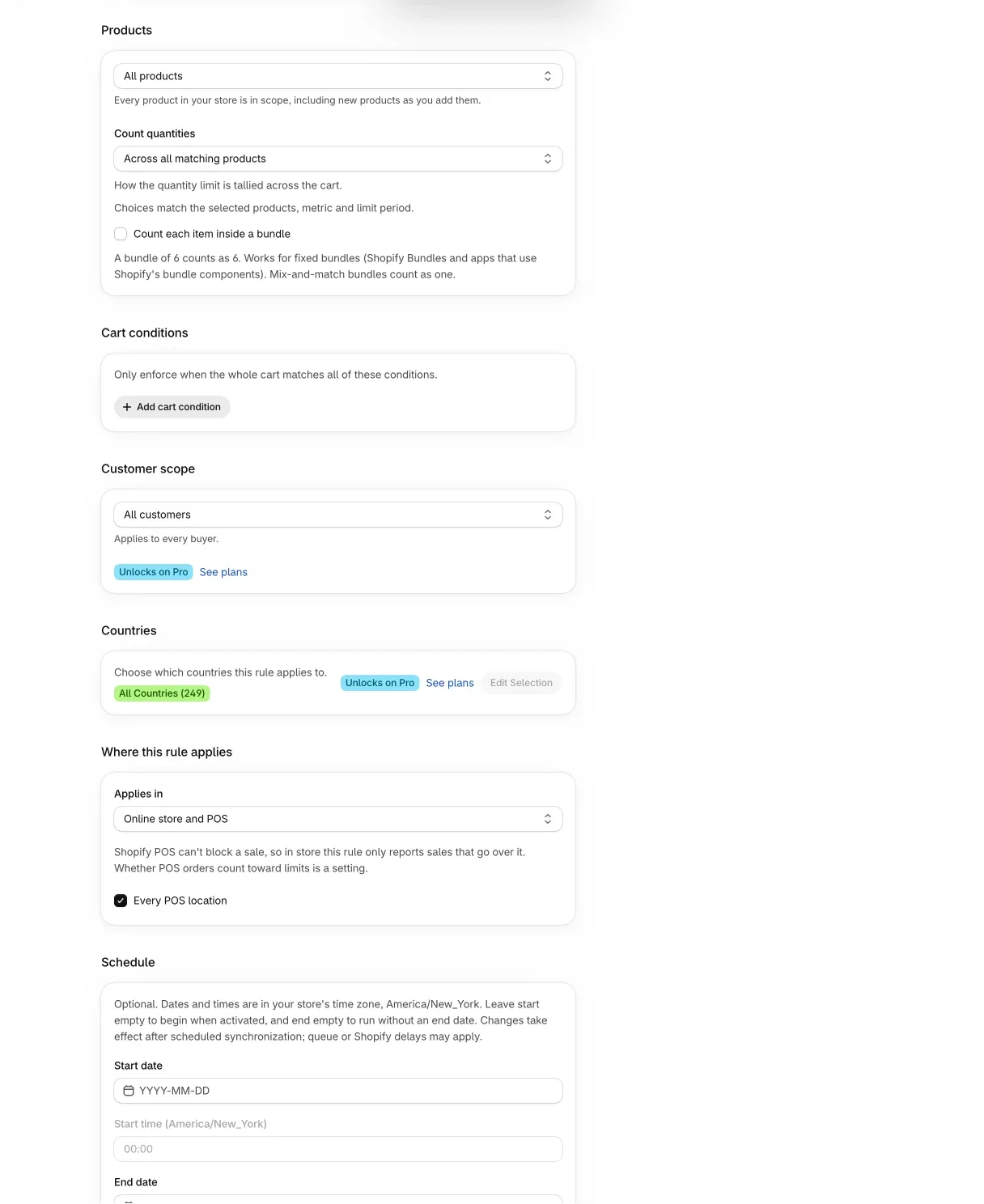
A rule with no targeting applies to every product, every customer and every country, all the time. The rule editor has one card for each way to narrow that down. This guide goes through them in the order they appear. For the basics of a rule, see Create your first limit.
Which products
The Products card has an “Apply this rule to” menu.
| Choice | What it covers |
|---|---|
| All products | Every product in your store, including products you add later. |
| Specific collections | Products in the collections you select. |
| Specific products | Only the products you select. |
| Specific variants | Only the variants you select. |
| Products matching conditions | Products that match the conditions you define. |
For the three “specific” choices, use the picker to select items. You can also enter Shopify IDs separated by commas. A table lists what you selected, with search. Per customer and whole-store limits do not offer “Products matching conditions”, and whole-store limits do not offer collections.
Products matching conditions
This choice builds a product group from rules instead of a hand-picked list. The sentence “Products that match all of the following” lets you switch between all and any. Each row is a field, an operator and a value.
| Field | Operators |
|---|---|
| Product vendor, Product type, Product title, Variant SKU, Variant title | is, is not, contains, does not contain, starts with, ends with |
| Product tag | is, is not |
| Product price | is, is not, is greater than, is less than, is at least, is at most |
Vendor, type and tag values come with suggestions from your store as you type. Title, SKU and price are free entry. You can enter several values separated by commas: “is” matches if the product has any of them, and “is not” excludes all of them. In checkout, text matching ignores upper and lower case and leading or trailing spaces.
Tag conditions offer only “is” and “is not”. Shopify checkout can answer whether a product has an exact tag, and cannot search inside the tag list.
A product group needs at least one condition, so the last one cannot be removed. As an example, “Product tag is limited-drop” with a maximum of 2 covers every product that carries that tag, so there is no list to maintain.
How quantities are counted
“Count quantities” sits at the bottom of the Products card.
| Option | Behavior |
|---|---|
| Across all matching products | One total for the cart, compared with the limit. |
| Across selected products combined | One total for the products you selected. |
| Across selected variants combined | One total for the variants you selected. |
| Per product | Each product gets its own check. |
| Per variant | Each variant gets its own check. |
| Per collection | Each selected collection gets its own check. |
The menu only shows options that fit the scope, the metric and the limit period. Per collection appears only with Specific collections. With “Products matching conditions” you can choose across all products, per product or per variant. If the maximum follows available stock, counting is fixed to per variant.
For quantity limits there is also “Count each item inside a bundle”. With it on, a bundle of 6 counts as 6. It works for fixed bundles: Shopify Bundles and apps that use Shopify’s bundle components. Mix-and-match bundles count as one.
Which customers
The Customer scope card has its own “Apply this rule to” menu.
| Choice | Who it covers |
|---|---|
| All customers | Every buyer. |
| Logged-in customers | Customers who are signed in. |
| Guests (not logged in) | Guests who are not signed in. |
| Specific customers | The customers you list, by customer ID. |
| Customers with a tag | Customers with any of the tags you list. |
| Customers without a tag | Customers with none of the tags you list. |
| New customers | Customers placing their first order. |
| Returning customers | Customers who have ordered before. |
On the Free plan only “All customers” is available. The other choices need Pro, and the menu shows which plan unlocks them.
Two details matter in checkout. A returning customer has to be signed in: a guest never matches Returning customers. A guest only counts as new if you tick “Count guests (not signed in) as new customers”, which appears when you choose New customers. Tags and IDs are comma-separated lists.
A whole-store limit is shared by everyone, so it only works with All customers.
Which countries
The Countries card is set to all countries by default. “Select Countries” opens a searchable list with Select all. Pick at least one country once you narrow it. Country targeting needs Pro.
In checkout, the country comes from the cart’s localization, which is the country the buyer is shopping from. The app does not read the shipping address for this.
When
The Schedule card has a start and an end, each with a date and a time. The time is in your store’s time zone, which the card names. If the app cannot read your store’s time zone, it falls back to UTC and says so.
- Leave the start empty and the rule begins when you activate it.
- Leave the end empty and the rule has no end date.
- Clear schedule removes both.
Scheduling is available on every plan. A schedule takes effect after the app’s scheduled synchronization, so a queue or Shopify delay can move the exact moment slightly.
Cart conditions
Cart conditions apply only when the limit is based on This cart. The rule is enforced only when the whole cart matches all of the conditions you add.
| Field | Operators |
|---|---|
| Cart subtotal, Cart total quantity, Cart total weight, Cart item count | is greater than, is less than, is at least, is at most, is, is between |
| Cart contains collection, Cart contains product | includes any of, includes none of |
For example, a maximum of 5 that applies only when Cart subtotal is at least a set amount leaves small orders alone. The collection and product fields use Shopify’s picker. Cart conditions are separate from the product conditions above: product conditions decide which items a rule covers, and cart conditions decide whether the rule applies to this cart at all.
Where the rule applies
The “Where this rule applies” card sets the sales channel.
- Online store and POS, the default.
- Online store only.
- POS only.
Shopify POS cannot block a sale, so in store a rule only reports sales that go over it. With a POS option selected you can limit the rule to chosen locations, or leave it on every POS location. Whether POS orders count toward purchase-history and store-wide limits is a store setting. Open Settings and look for “Count in-store (POS) orders toward limits”. It is on by default.
When several rules match
All matching rules apply at checkout. On the storefront, the rule with the lowest priority number drives the quantity box. Reorder rules on the Rules page by sorting by priority order with filters cleared and using Move up and Move down in the row menu.
The editor warns you when a rule overlaps others, and the Rules list shows an “Overlaps” badge. It also stops you from saving a second rule that targets exactly the same products, customers and countries as an existing one, and offers to open the existing rule.