Get started with Order Limits
Install Tillward Order Limits, open the app in your Shopify admin and set up your first quantity or order limit.
Updated
Order Limits sets a minimum, a maximum or a multiple on what a buyer can purchase. It checks the limit in your online store and again in Shopify checkout. This guide covers the install, the two setup steps that make a limit work, and what each plan includes. The next two guides build a rule and explain how to aim it.
What the app does
A limit can apply to a single order, to what one customer has bought over a period, or to what the whole store has sold over a period. A single-order limit can count quantity, order value or cart weight. A purchase-history limit can count units, amount spent, number of orders or weight.
Limits are checked in two places.
- On the storefront. Product pages, the cart page, quick add and cart drawers show the limit message and stop the buyer from going past it. This needs the app embed switched on (see the setup steps below).
- In checkout. Shopify Functions check the cart and block checkout with an error when it is over a limit. The “Enforce at checkout” setting controls this for each display configuration, and it is on by default.
Order-value and weight limits are checked in checkout only, so the app has no storefront block counts for them. Shopify POS cannot refuse a sale, so a rule that applies in store only reports sales that go over it.
Install the app
- Open the listing: View on the Shopify App Store.
- Choose to add the app to your store.
- Approve the permissions Shopify lists.
The app opens in your Shopify admin on its Home page. The listing and the admin may still show the earlier Nexo name for a while. It is the same app.
Find your way around
The left navigation has six entries.
- Home has the setup guide, the enforcement status and what your limits did over the last 7, 30 or 90 days.
- Rules lists your limits. You can filter them by Live, Off or Needs attention.
- Templates has ready-made limits for common cases, such as Black Friday or case packs.
- Analytics goes deeper on blocked carts and on whether those buyers came back and ordered.
- Pricing shows the plans.
- Settings holds store-wide preferences, such as custom CSS and whether Shopify POS orders count toward limits.
Work through the setup guide
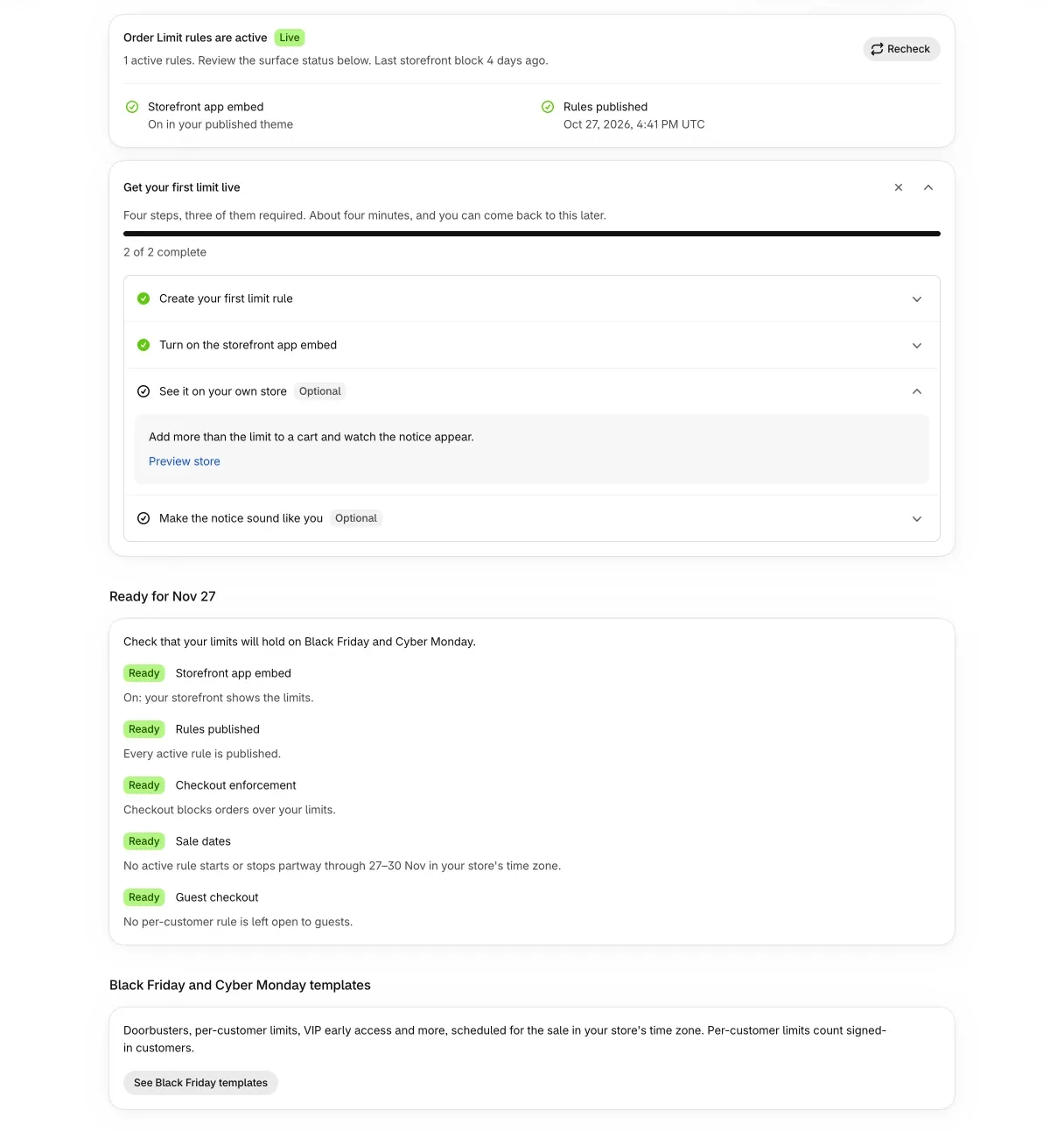
Home opens with a card titled “Get your first limit live”. Two steps are required.
- Create your first limit rule. Quantity per order is the usual first rule. The next guide walks through it.
- Turn on the storefront app embed. It is one toggle in your theme editor. The “Open theme editor” button on the card opens the App embeds panel with Order Limit preselected. Switch it on and save the theme. Without the embed, limits are only checked at checkout.
The card also lists two optional steps. One is to add more than the limit to a cart on your own store and watch the notice appear. The other is to change the wording, colors and placement of that notice, for each language.
Until your first rule is live, Home says “Order Limit is installed and waiting”. Once a rule is active, the storefront starts holding it within about a minute.
Plans
The Free plan allows one rule. Trying to create a second one opens an upgrade prompt. Pro removes the rule cap and unlocks these:
- limits based on purchase history, per customer or for the whole store
- a cooldown between orders
- different caps for new and returning customers
- country targeting
- targeting by customer type, tag or ID
- translated buyer messages
Scheduling a rule for sale dates is available on every plan. Pro starts with a 7-day free trial, with no charge until it ends. Prices are on the pricing page.