Create your first limit
Build a quantity limit in Order Limits. Name the rule, set a maximum, choose products, turn it on and check it on your store.
Updated
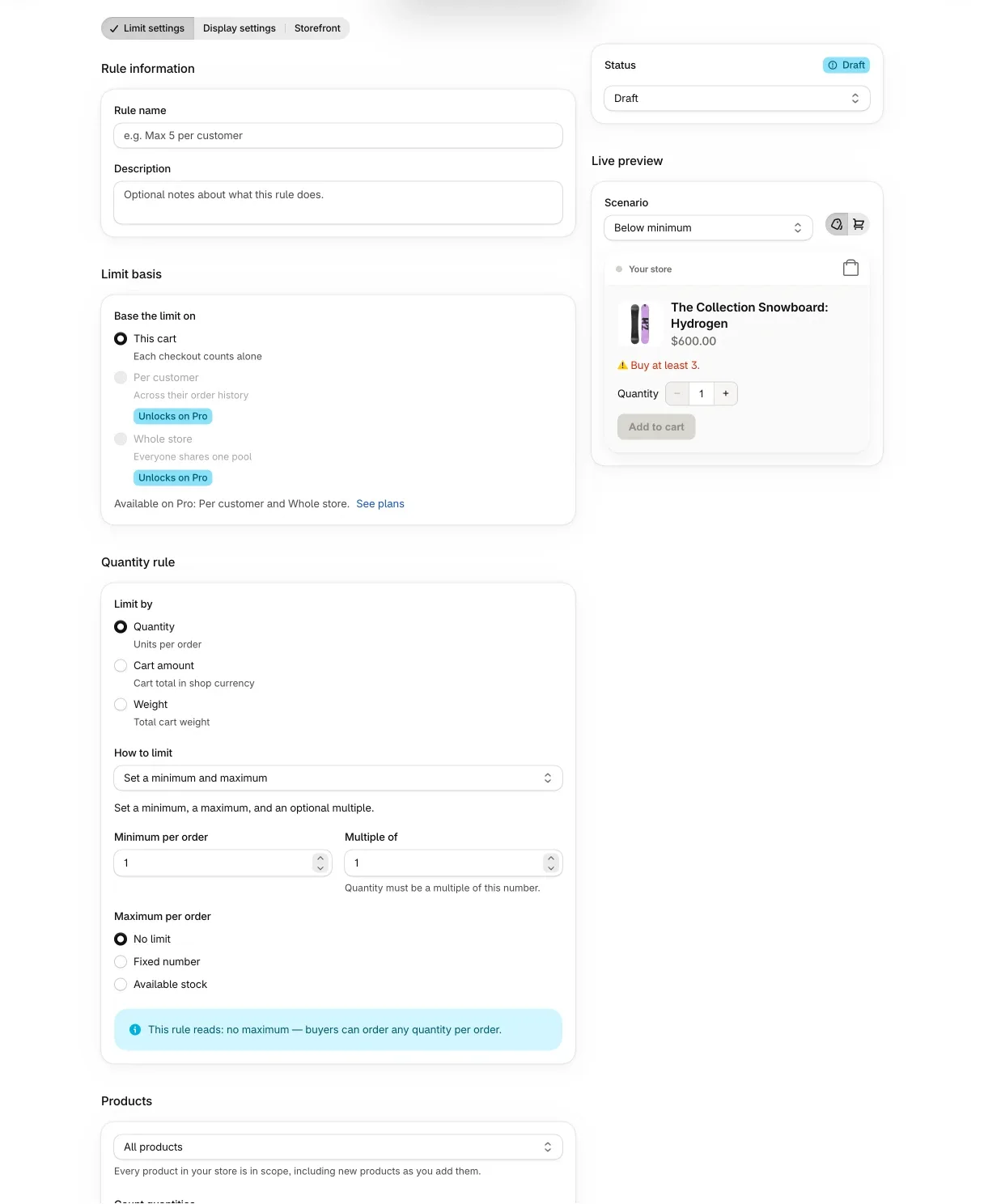
This guide builds one rule: no more than 5 units in a cart. Every other limit uses the same form, so the steps carry over. It assumes the app is installed and the storefront app embed is on. If not, start with Get started with Order Limits.
Open the editor
Choose Create rule on Home or on the Rules page. On an empty list the button reads “Create your first rule”. A dialog offers “Start from a template” or “Blank rule”. Pick Blank rule for this walkthrough. Templates are covered at the end.
On the Free plan, the button opens an upgrade prompt once you already have one rule.
Name the rule
Under Rule information, enter a Rule name. It is required. Use something you will recognize in a list of rules, such as “Max 5 per order”. The Description field is optional and holds notes for you or your team.
Choose what the limit is based on
The “Base the limit on” cards decide what the app counts.
- This cart: each checkout counts alone.
- Per customer: counts across the customer’s order history.
- Whole store: everyone shares one pool.
Per customer and Whole store are Pro features. On Free they are greyed out and carry a badge naming the plan that unlocks them. Pick This cart.
Set the limit
The Quantity rule card starts with “Limit by”.
- Quantity: units per order.
- Cart amount: the cart total in your shop currency.
- Weight: the total cart weight.
Pick Quantity. Under “How to limit”, choose one of three styles.
- Set a minimum and maximum: a minimum, a maximum and an optional multiple.
- Allow only specific quantities: an exact list, such as packs of 6, 12 and 24.
- Custom ranges (advanced): your own quantity ranges, each with its own rule.
Choose “Set a minimum and maximum”. You get three fields.
- Minimum per order.
- Multiple of. The quantity must be a multiple of this number.
- Maximum per order, with three choices: No limit, Fixed number, or Available stock.
Choose Fixed number and enter 5. Available stock caps the quantity at the variant’s current stock instead of a number you type. A fixed maximum of 0 blocks every purchase of the matching products, and the editor warns you about it.
Under the fields, a line starting “This rule reads:” restates the rule in words. For this one it says buyers can order at most 5 of these products per order, with no minimum and any step. Read it before you save to catch a swapped minimum and maximum.
“Snap typed quantities” decides what happens when a buyer types a quantity that is not allowed. The app can adjust it to the nearest allowed value (the default), always round up to the next allowed quantity, or leave it as typed and reject it at checkout.
Pick the products
The Products card opens with “Apply this rule to” set to All products. Leave it there for now. The next guide covers collections, single products, variants and conditions.
Below it is “Count quantities”. The default, “Across all matching products”, adds up the quantities in the cart and compares the total with your limit. With a maximum of 5, a cart holding 3 shirts and 3 mugs is over. Choose “Per product” if each product should get its own 5.
Turn it on and save
A new rule is saved as a draft, which limits nothing. In the Status card, set Rule status to Active, then choose Save rule. A “Rule saved” message confirms it.
The rule shows up under Live on the Rules page. Changes reach your storefront within about a minute. If a rule cannot be published, its status becomes Sync failed, and Home lists it under the issues banner so you can review it.
Check it on your store
Open your storefront, add 6 units to a cart and look for the limit message on the product page. Then try checkout with an over-limit cart: Shopify shows an error and does not let the order through. If you see no message on the storefront, confirm the app embed is on. With the embed off, only checkout enforces the rule.
Change what the buyer reads
The Display settings tab on the rule holds the buyer-facing side.
- Storefront messages: turn the message on or off for the product page, the cart page, and quick add and drawers. Hiding a message does not turn off the limit.
- Wording: edit each message. Messages can use variables such as
{max}and{remaining}. The latter is how many more the buyer can add before hitting the limit. “Starter sentences” offers neutral, friendly and sales-positive versions to start from. - Position and appearance: where the message sits, plus its style, animation, font and colors.
- Enforce at checkout: blocks checkout with an error when a buyer exceeds a limit. It is on by default. Turn it off only if over-limit orders may complete.
A live preview on the right shows the message on a sample product page and cart for several scenarios, such as below minimum or over maximum. Messages in other languages are a Pro feature.
Other kinds of limit
A minimum and a multiple
Fill in Minimum per order and Multiple of. A minimum of 6 and a multiple of 6 sells only in sixes.
Order value
Choose Cart amount under “Limit by”, then set a Minimum order value, a Maximum order value, or both, in your shop currency. These rules are checked in checkout only.
Weight
Choose Weight, set a minimum or maximum, and pick grams, kilograms, ounces or pounds. Also checkout only.
Per customer or whole store (Pro)
Under “Limit by”, choose Units purchased, Amount spent, Number of orders or Total weight. Pick a time window: All time, Daily, Weekly, Monthly, Yearly or a rolling window you size yourself. You also choose which orders count, from all orders to excluding cancelled or refunded ones. Windows other than all time refresh on a roughly hourly sweep, so a window that has just rolled over can lag briefly. “Limit style” switches between a running total per period, a cooldown lockout and a new-versus-returning lifecycle.
Start from a template
Instead of a blank rule, “Start from a template” opens a catalog of ready-made limits, grouped by use case: Black Friday and Cyber Monday, limited drops, wholesale and case packs, order value, B2B and customer groups, per customer over time, shipping weight and regional. Each card has a Preview, and “Use template” opens the rule as a draft that you review before you turn it on. A template may ask you to fill in products, collections, tags, countries, dates or an amount first. If it uses a feature your plan lacks, the catalog says which plan unlocks it.