Conditions and targeting for payment rules
Every condition Payment Rules offers, how conditions combine, how a rule finds the payment method it changes, and the limits on mixing conditions.
Updated
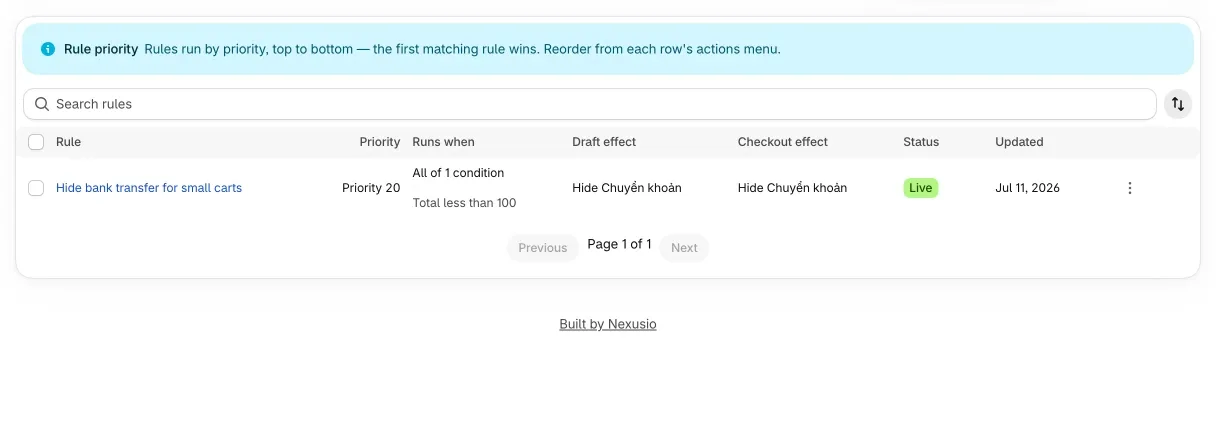
A rule has two halves. Conditions decide when it runs. Targeting decides which payment method it changes. This page covers both. To build a rule first, see Create your first rule.
How conditions combine
Every rule needs at least one condition and at least one action. With several conditions you choose “Meet all of these” (every condition must hold) or “Meet any of these” (one is enough). To express “A and (B or C)”, write two rules: one with A and B, one with A and C.
When several rules match one checkout, all of them apply. If two rules move or rename the same method, the one with the lower priority number wins, and a hide beats a move or a rename of the same method.
The conditions
There are 28 conditions in six groups. The editor shows each as the group, a dot and the field, for example “Cart · Subtotal”. The operators are named in the editor as below.
- Number: Equals, Does not equal, Greater than, Greater than or equal, Less than, Less than or equal, Between (a minimum and a maximum, both included).
- Yes or no: Equals, Does not equal. Two fields also offer Exists.
- Text: Equals, Does not equal, Contains, Starts with, In, Not in.
- Exact value: Equals, Does not equal, In, Not in.
- List: Contains, Contains any of, Contains all of, Contains none of.
Cart
| Field | Operators | Notes |
|---|---|---|
| Subtotal | Number | Shopify’s cart subtotal. |
| Total | Number | Shopify’s cart total. |
| Item count | Number | The quantities of all lines added together. |
| Has discount code | Yes or no, Exists | True when the cart has any discount applied. It cannot tell a code from an automatic discount. |
Product
A product condition looks at the lines in the cart. Pick products, variants and collections from your catalog; the other values are typed.
| Field | Operators | Notes |
|---|---|---|
| Product | Exact value | Picked from your products. |
| Variant | Exact value | Picked from your variants. |
| Collection | List | Picked from your collections. A variant counts as a member when it or its product is in the collection. |
| Tag | List | Product tags. |
| Vendor | Text | |
| Product type | Text | |
| SKU | Text | |
| Requires shipping | Yes or no | |
| Line quantity | Number | The quantity on a single line. |
| Item weight | Number | The weight stored on the variant, compared as a plain number. The app does not read or convert the weight unit. A variant with no weight never matches. |
Customer
| Field | Operators | Notes |
|---|---|---|
| Is authenticated | Yes or no | The customer is signed in to a customer account at checkout. |
| Tag | Equals, Does not equal, Contains, Contains any of, Contains all of, Contains none of, In, Not in | Customer tags. A checkout with no customer has no tags. |
| Order count | Number | How many orders the customer has placed. Counted as 0 when Shopify gives the rule no customer. |
Shipping
| Field | Operators | Notes |
|---|---|---|
| Country code | Exact value | A two-letter country code such as US. With no shipping address yet, or with pickup only, the buyer’s country is used. |
| Province code | Text | |
| ZIP / postal code | Equals, Does not equal, In, Not in, Starts with | |
| P.O. box | Yes or no, Exists | True when address line 1, address line 2 or the ZIP contains “po box”, “pobox” or “post office box”, ignoring dots and case. |
| Selected shipping method | Exact value | The title of the delivery option the buyer chose, such as Standard Shipping. Case and surrounding spaces are ignored here. |
| Delivery method type | Exact value | One of SHIPPING, LOCAL, PICK_UP, PICKUP_POINT or RETAIL. |
Market
| Field | Operators | Notes |
|---|---|---|
| Market | Exact value | Picked from your Shopify Markets. |
| Market handle | Exact value | The market’s handle. |
B2B
| Field | Operators | Notes |
|---|---|---|
| Is B2B | Yes or no | The buyer is purchasing for a company. |
| Company ID | Exact value | |
| Company location ID | Exact value |
What to watch for
Product conditions match when at least one line matches. That has a trap with the negative operators. “Product does not equal X” is true as soon as any line is a product other than X, so a cart holding X and Y still matches. To act only on carts that contain none of a set of products, use Collection or Tag with “Contains none of”. Those look across all the lines at once.
Text comparisons are case-sensitive. “Vendor equals nike” does not match “Nike”. Selected shipping method is the exception. Country and province codes are upper case.
Amounts compare as plain numbers in the currency the customer pays in. The app does not convert currencies.
Shipping conditions on a split order, such as one that ships in two parts or mixes shipping and pickup, check every part. A positive operator matches if any part matches. A negative one (“Does not equal”, “Not in”) matches only if no part has the value. Address fields skip parts that are pickup.
How a rule finds the payment method
Each action names a payment method by text. In the Simple editor the name is matched as “contains”. The Advanced editor adds two more ways: “Exact ID” and “Name equals”.
- Contains. The text you typed, trimmed, is looked for inside the method’s name. Upper and lower case do not matter for English letters. “Cash” matches “Cash on Delivery (COD)”.
- Name equals. The whole name must match, ignoring case.
- Credit card is special. A “contains” match on “credit card” also matches any method whose name contains “card”, except names that contain “gift”, and the test Bogus Gateway. This is because card gateways often appear under their provider’s title, such as “Pay via Cards/Wallets/Bank Transfer”.
- Shopify shows its standard manual methods (Bank Deposit, Cash on Delivery) in the merchant’s and buyer’s language, but a rule always receives the English name. The app therefore also accepts the translated Bank Deposit and Cash on Delivery labels in Japanese, Vietnamese, Chinese, Korean, German, French and Spanish.
Wallets (Shop Pay, Apple Pay, Google Pay, PayPal, Klarna) match like any other method. Shopify may ignore a rename or a move aimed at one, and the editor warns you when a rule targets one.
Where a hide applies
A hide action has an “Apply to” choice: “All checkouts” (the default), “Express / accelerated checkout only” or “Regular payment form only”. The express choice takes effect only on Shopify Plus; on other plans Shopify ignores it.
Limits on mixing conditions
Payment rules run as small Shopify Functions, and Shopify caps how much data each one may request. So the app groups conditions into three families:
- Product conditions.
- Customer conditions.
- Shipping, Market and B2B conditions.
Cart conditions fit with anything. One rule can use conditions from at most two families. A rule that mixes product, customer and shipping conditions cannot be saved: the editor answers “These conditions can’t be used together in one rule” and names the fields. A product condition also cannot sit with both a delivery condition (Selected shipping method or Delivery method type) and a shipping address, market or B2B condition.
The limit reaches across rules. Rules that name the same or overlapping payment methods are published together, and the group as a whole must stay within two families. If a save or a publish reports “Some conditions can’t be combined”, change one rule to target a different method, or drop a condition.
Actions for B2B orders
Two actions apply to the whole order rather than a payment method. They take effect only for B2B checkouts on Shopify Plus; elsewhere Shopify ignores them and the order completes normally.
- Require order review holds the order for your review and takes a short reason. The rule must also have a B2B condition.
- Set payment terms applies Net terms (7, 15, 30, 45, 60 or 90 days), a fixed due date, or terms tied to an event (a fulfillment is created, an invoice is sent, the order is fulfilled). It can also remove terms, and a deposit of 1 to 99 percent is optional.
Three examples
Hide Cash on Delivery for orders shipping outside the U.S.: Shipping · Country code, “Not in”, US. Action: Hide payment methods matching “Cash on Delivery”.
Hide the credit card for wholesale customers: Customer · Tag, “Contains any of”, wholesale. Action: Hide payment methods matching “Credit card”.
Put a local method first in one market: Market · Market handle, “In”, the market’s handle. Action: Move payment methods matching “Cash on Delivery” to the Top.