Get started with Payment Rules
Install Tillward Payment Rules, find your way around the app and learn what a rule can do to the payment methods shown at Shopify checkout.
Updated
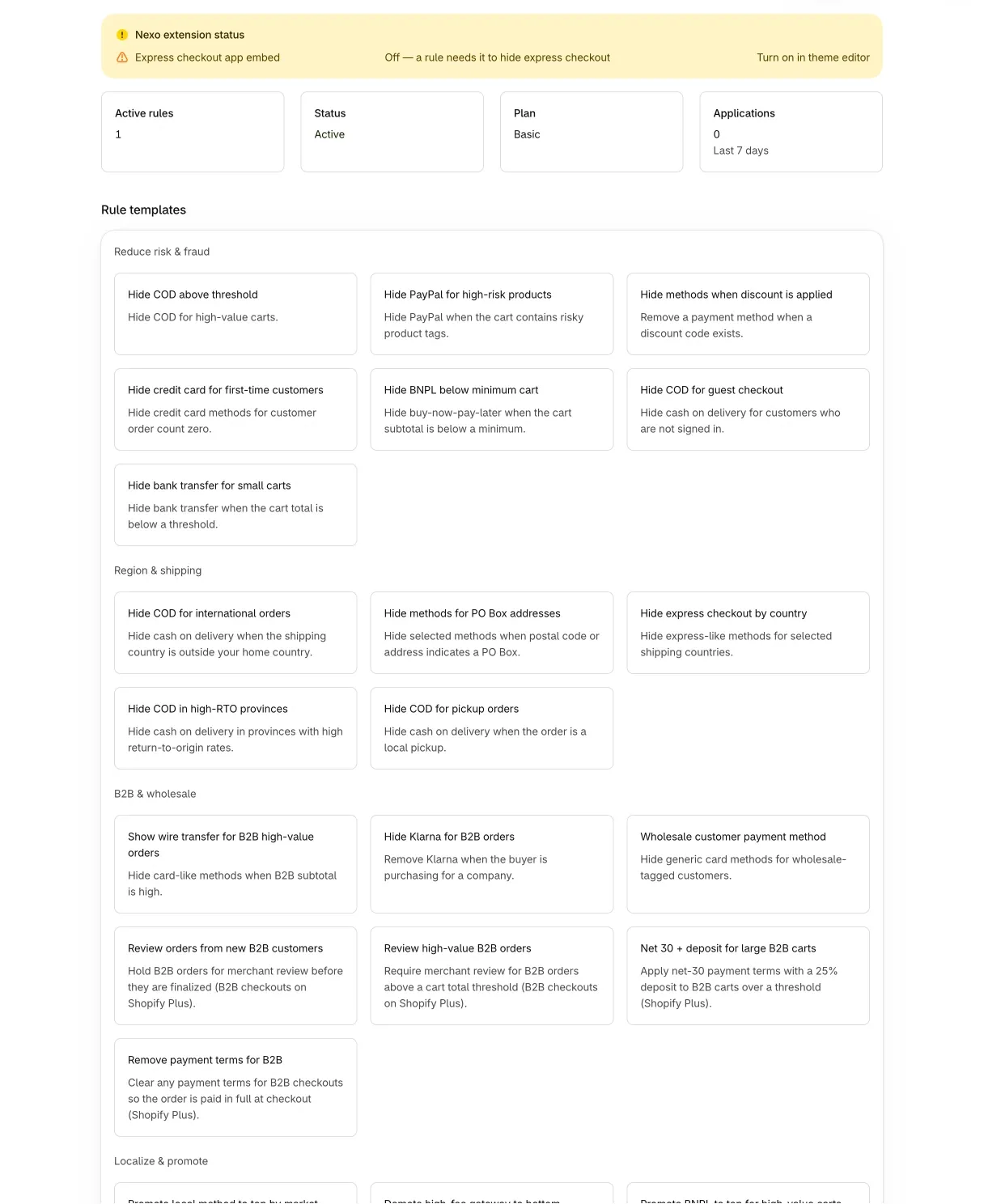
Tillward Payment Rules decides which payment methods a customer sees at Shopify checkout. You write rules. Each rule has conditions (the cart is over a set amount, the address is outside your home country, the customer carries a tag) and an action on a payment method: hide it, move it to the top or bottom of the list, or rename it.
Rules run inside Shopify checkout as a payment customization. There are no theme edits and no redirects. The app is free today; Pricing has the current plans for all three apps.
Install the app
Start on the Payment Rules page, which links to the app’s listing on the Shopify App Store. Install it from the listing and approve the permissions Shopify shows you.
The app asks to read products, customers, shipping settings, markets and orders, and to write payment customizations. The last one is how a published rule reaches checkout. If the install did not finish, the home screen shows a “Finish installing Nexo” banner. If a permission is missing, it shows “Permissions needed”.
Open the app from Apps in your Shopify admin. Inside the admin it still carries its earlier name, Nexo Payment Rules. It is the same app.
What the home screen shows
From top to bottom:
- A status banner for the express checkout app embed. It matters only if you want to hide express buttons on your storefront, covered below.
- A setup guide with steps such as “Connect your store” and “Create your first rule”. You can dismiss it.
- Four numbers: Active rules, Status, Plan and Applications.
- A gallery of rule templates, grouped by goal.
Status reads “Active” when at least one published rule is running and nothing has failed, and “Publish failed” when Shopify did not accept the last update. Anything else reads “No active rules”, which includes the case where you turned every customization off. Plan is your store’s Shopify plan, not a Tillward plan.
Applications is the number of times your published rules matched on orders placed in the last 7 days. The app works it out after the order exists, from the order data Shopify sends, one count per matching rule. Orders that did not come through checkout (point of sale, API, draft orders) are skipped. Conditions that depend on data an order does not carry, such as collections, markets and B2B details, are not counted, so the number can run low. It is a gauge, not an audit.
Simple and Advanced editors
The rule editor has two modes, set under Settings, “Editor mode”. Simple is the default: a guided editor that reads like a sentence. Advanced is the full builder. You pick a condition’s group and field separately, choose how a payment method is matched (exact ID, name equals or name contains), and get publish diagnostics and a three-part status for each rule.
Both modes save the same rules. The rest of these guides use Simple.
What a rule can change
- Hide removes a payment method from the list. You can limit a hide to the express checkout area or to the regular payment form.
- Move puts a payment method at the top or the bottom of the list.
- Rename changes the label the customer sees. The payment method itself is unchanged.
Two more actions apply to a whole order instead of a payment method, for B2B checkouts: require order review, and set payment terms. They are covered in Conditions and targeting.
Limits that come from Shopify
The editor shows a warning for each of these, because the app cannot override them.
- Based on Shopify’s known behavior, a rename or a move aimed at a wallet (Shop Pay, Apple Pay, Google Pay, PayPal, Klarna) may have no effect. The app notes that this can change.
- In the U.S. and Canada, Shopify only lets stores that are not on Plus customize payment methods other than credit cards. Hiding the credit card there needs Shopify Plus.
- Hiding a method in the express checkout area only takes effect on Shopify Plus. Elsewhere Shopify ignores it and the method stays visible.
- Requiring order review and setting payment terms only take effect for B2B checkouts on Shopify Plus.
Hide express buttons on the storefront
Separate from rules, the app ships a theme app embed named “Hide express buttons”. Turn it on in the theme editor, under App embeds. The home screen shows a “Turn on in theme editor” link while it is off.
Once on, it hides the dynamic checkout buttons (Shop Pay, PayPal, Apple Pay, Google Pay) on product pages and on the cart page. Both are on by default, each with its own checkbox. It hides all the buttons on a page or none, because Shopify draws them in a closed container and one wallet cannot be hidden alone. Hiding them can lower conversion, so test it before you leave it on.
Next steps
Build a rule in Create your first rule. The full list of conditions is in Conditions and targeting.