Create your first payment rule
Build a payment rule in the Simple editor, check it in the checkout simulator, save it so it goes live, and manage it from the rules list.
Updated
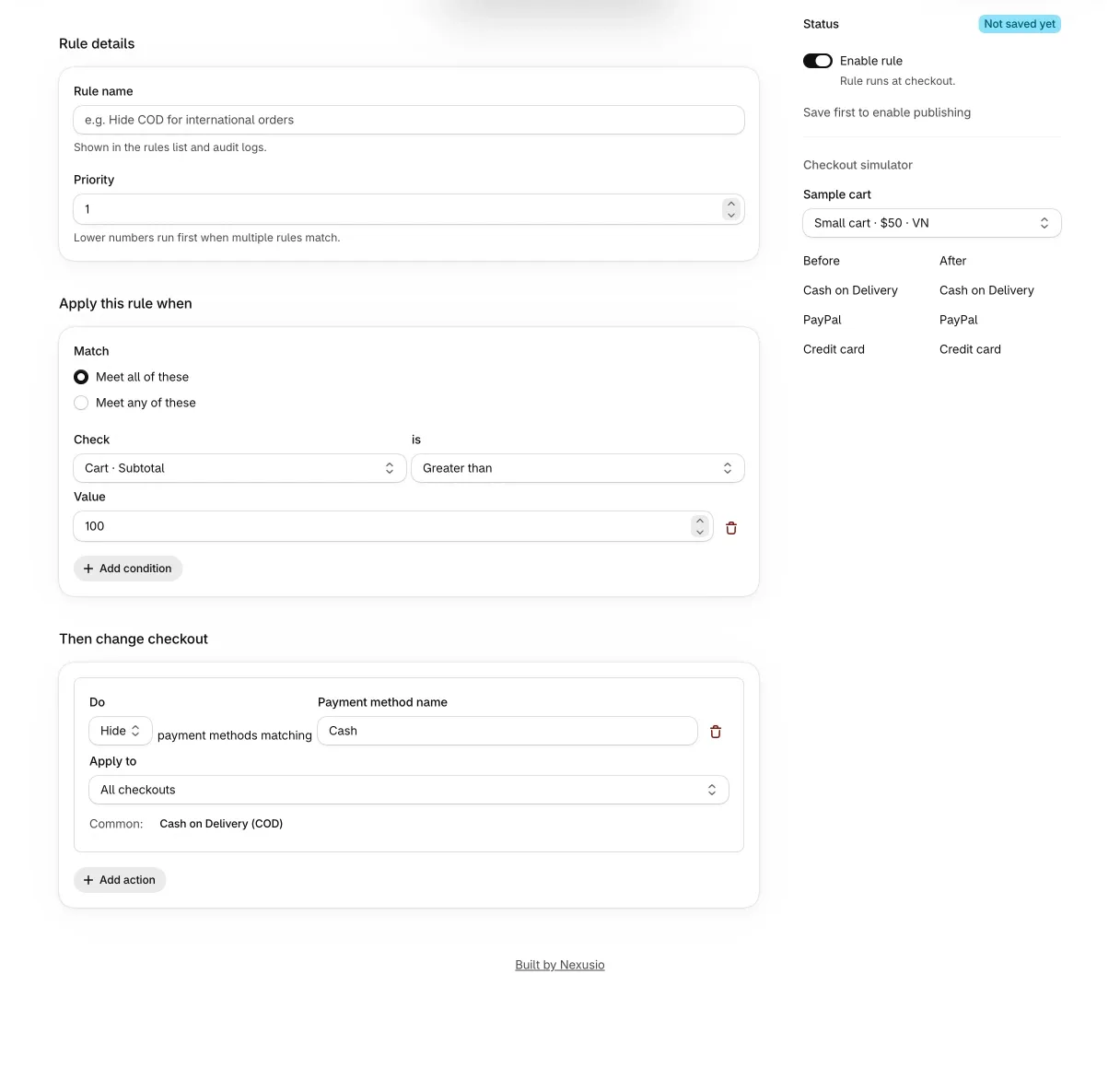
This guide builds one rule: hide Cash on Delivery when the cart subtotal is over 250. Swap in the payment method and amount that fit your store. If you have not installed the app yet, start with Get started with Payment Rules.
Start from a template or from scratch
There are three ways in:
- The home screen has a “Rule templates” gallery. The Rules page shows the same gallery while you have no rules.
- On a new rule, “Start from a template” opens a picker.
- “Create rule” opens a blank rule.
There are 29 templates in five groups: Reduce risk and fraud, Region and shipping, B2B and wholesale, Localize and promote, and Product and catalog. Choosing one fills in the form and saves nothing. Check the values before you save. “Hide COD for international orders” treats the U.S. as the home country, and “Hide COD above threshold” uses 250.
A blank rule is not empty. It starts enabled, with a condition (cart subtotal greater than 100) and an action (hide payment methods matching “Cash”). Change both, or turn the rule off, before you save, or you will publish that starter rule.
For this guide, open “Hide COD above threshold” from the gallery.
Fill in the rule
The editor has a “Rule details” section and two sections that read as a sentence.
- Rule name. Required. It shows in the rules list.
- Priority. Lower numbers run first when several rules match. A blank rule starts at 1; a template sets its own number.
- “Apply this rule when”. Pick what to check, an operator and a value. For this guide: Cart · Subtotal, “Greater than”, 250. Add more conditions with “Add condition”. With two or more, choose “Meet all of these” or “Meet any of these”.
- “Then change checkout”. Pick Hide, Move or Rename, then type the payment method name. For this guide: Hide, payment methods matching “Cash on Delivery”.
Amounts are plain numbers. The app does not convert currencies: the rule compares your number with the amount in the currency the customer pays in. On a store that sells in several currencies, 250 means 250 of whatever the customer sees.
The payment method name
Type the name Shopify uses for the method, usually in English, such as “Bank Deposit”, even when checkout shows it translated. Below the name field, buttons after the word “Common:” suggest names such as Cash on Delivery (COD), PayPal, Credit card, Shop Pay and Bank Deposit. They are suggestions; you can type anything.
In the Simple editor the name is matched as “contains”, ignoring upper and lower case. “Cash on Delivery” therefore also matches “Cash on Delivery (COD)”. More on matching is in Conditions and targeting.
Move and rename
- Move adds a “to the” choice: Top or Bottom.
- Rename adds a “New display name” field. The customer sees that label in place of the original.
A rule can hold several actions. Use “Add action”.
Check it in the checkout simulator
The simulator sits beside the form and reruns as you edit. Pick a “Sample cart” and it shows the payment list Before and After your rules.
The six sample carts are: Small cart, $50, VN; Large cart, $500, VN; International, $100, UK; B2B, $2,000, US; First-time customer, $80, US; and Test gateway, $1,000, US. The first five list Cash on Delivery, PayPal and Credit card. The last lists five test methods, including Bogus Gateway and Gift card.
What the simulator does and does not tell you:
- It runs your enabled rules together with the one you are editing, so it shows what customers would see once this rule is saved.
- It marks wallet moves and renames that Shopify is known to ignore (“Wallet can’t be reordered”, “Wallet can’t be renamed”).
- It warns with “This setup can block checkout” when a sample cart ends up with no payment method at all. That check uses an assumed set of methods (Credit card, Shop Pay, PayPal, Cash on Delivery, Apple Pay), not your store’s real list.
- The sample carts contain no products, so a rule built on product conditions cannot be exercised there. Test those at a real checkout.
Save, and the rule goes live
Choose “Save rule”. Saving publishes: right after the save the app sends your enabled rules to Shopify, in both editor modes. The rule’s status reads “Syncing…” and then “Live”.
If it reads “Sync failed”, use Retry. A banner above the form names the problem. The usual ones:
- “Some conditions can’t be combined”. The rule mixes conditions that cannot run together. See the limits in Conditions and targeting.
- “Too many rules share the same targets”. The rules that touch the same payment methods are too large to publish together. Delete or turn off some, or narrow what they match.
- “Rule limit reached”. Your rules need more checkout functions than Shopify allows for the store. Turn off or delete rules you no longer need.
- “Shopify did not accept the update”. Try again in a minute. The last published setup may still be running meanwhile.
Then look at the real thing. Put a product in the cart that meets the rule’s conditions, go to checkout and check the payment step. The simulator uses sample data; checkout is the test that counts.
Manage your rules
The Rules page lists every rule with its priority, what it runs on, the effect on checkout, a status and the last update. You can search, sort, and select rows for bulk Enable, Disable or Delete. Each row’s menu has Edit, Move up, Move down, Disable or Enable, Duplicate and Delete. Moving a rule up or down, enabling, disabling, duplicating and deleting each republish your rules.
A few behaviors to know:
- Every matching rule applies, not only the first. When two rules move or rename the same method, the higher priority (lower number) wins, and a hide beats a move or a rename of the same method.
- A paused rule is not published and shows “Off”.
- Deleting a rule removes it from checkout right away.
- “Turn off all customizations” on the Rules page is an emergency stop. After you confirm, none of your rules run at checkout. “Turn customizations back on” restores them.
When a rule does nothing
Go through these in order:
- The status is Live, not Syncing or Sync failed, and the rule is not paused.
- The payment method name matches what Shopify calls the method. Try a shorter fragment.
- The target is not a wallet you are trying to move or rename, and you are not hiding the credit card in the U.S. or Canada without Shopify Plus. The editor shows a warning for each.
- A hide aimed at the express area runs only on Shopify Plus.
- A higher-priority rule is not hiding, moving or renaming the same method first.